
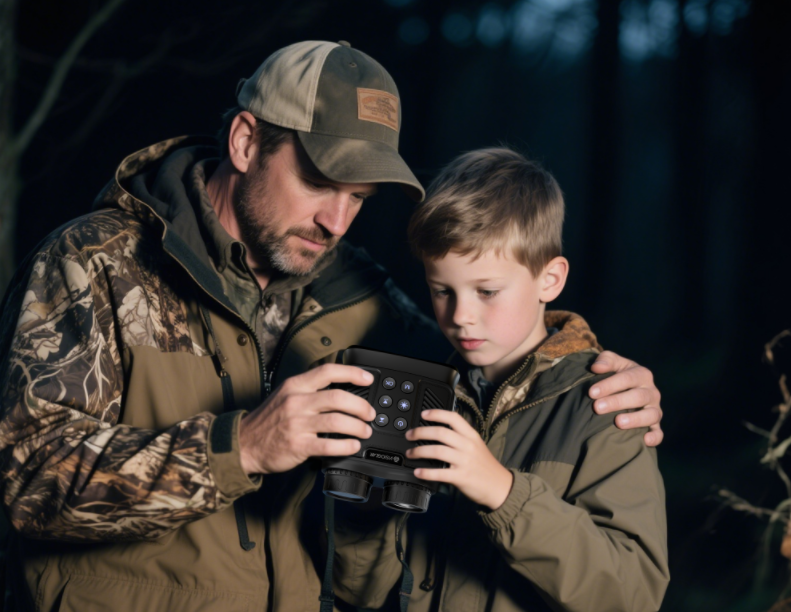
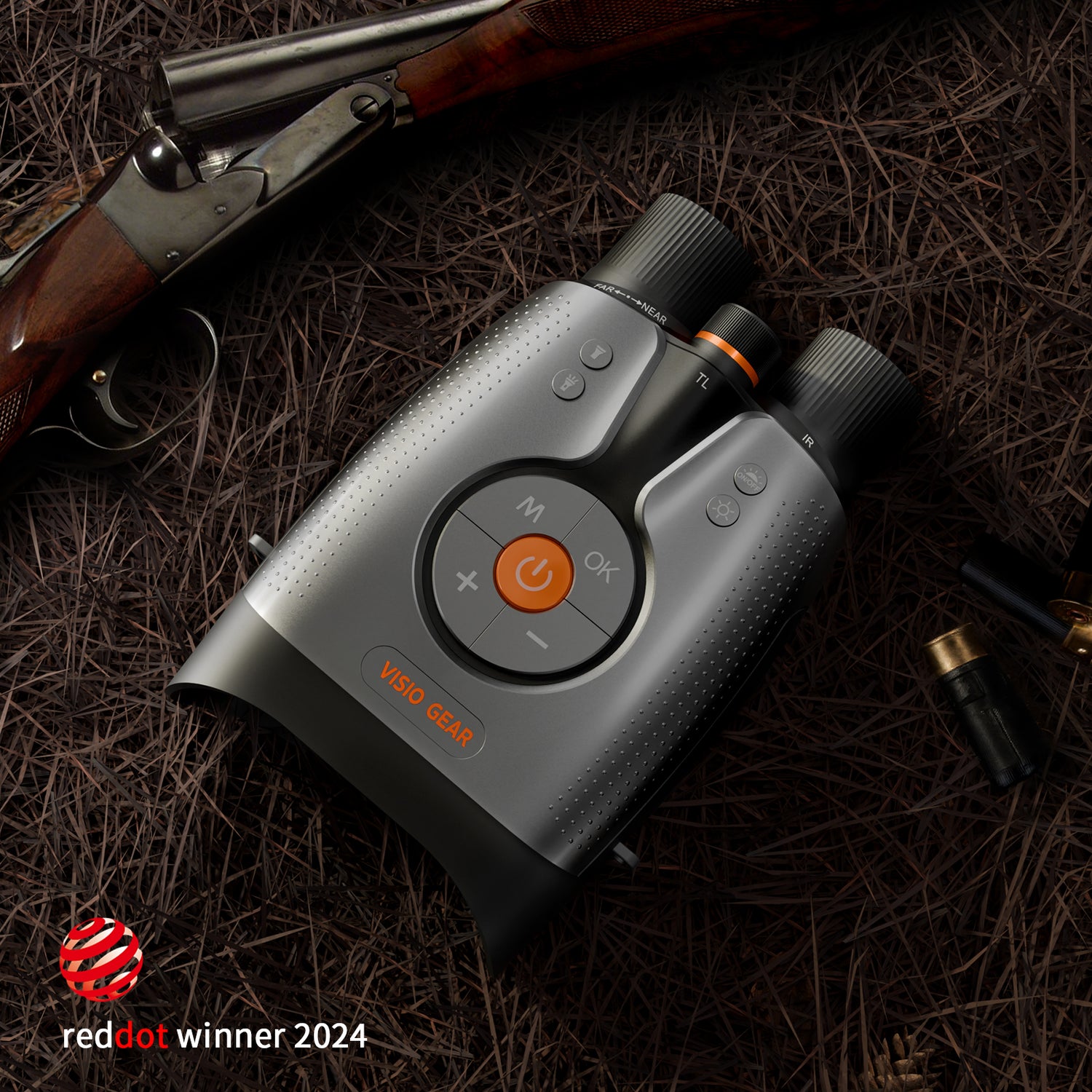
Your VisioGear night vision binoculars allows you to capture photos, record videos, and review your media directly on the device. Follow the simple steps below to switch between modes and manage your recordings.
Taking Photos
When the device powers on, it automatically enters Photo Mode.
To take a photo:
-
Turn on the device.
-
Make sure the screen shows the photo interface.
-
Press the OK button once to capture a photo.
The image will be saved automatically to the memory card.
Recording Videos
To switch from Photo Mode to Video Mode:
-
Short press the Power button once.
-
The device will switch to Video Mode.
To start recording:
-
Press the OK button once to start recording video.
-
Press the OK button again to stop recording.
The video file will be saved automatically to the memory card.
Viewing Photos and Videos (Playback)
You can review all captured photos and recorded videos directly on the device.
To enter Playback Mode:
-
Press the Power button twice continuously.
-
The device will open the media gallery.
To browse your files:
-
Press "+" to go to the next file
-
Press "–" to go to the previous file
Deleting Photos or Videos
If you want to delete a file:
-
Enter Playback Mode.
-
Navigate to the photo or video you want to remove.
-
Open the delete option (press the "M" button).
-
Confirm deletion.
The selected file will then be removed from the memory card.
Tips
-
Make sure a TF / microSD card is inserted before capturing photos or videos.
-
Files are saved automatically after recording or shooting.
-
Use the playback function to quickly review footage in the field.
0 comments